


10 Tips to Optimize Elementor Website Speed Including Image
Steps to Optimize Elementor Website Speed Including Image
If you are a WordPress user and you want to speed up your slower website due to numerous images and Elementor codes, all you need to do is fix the slow loading problem for easy indexing into Google SERP or another search engine. You can do those settings in a few minutes using very easy methods. So let’s start.
The optimization of Elementor website speed is a crucial aspect of enhancing user experience and SEO performance. Effective image optimization plays a significant role in achieving optimal loading times and overall site performance. By implementing best practices in image compression and lazy loading techniques, web developers can significantly improve the speed and efficiency of Elementor websites. Furthermore, leveraging caching mechanisms and minimizing HTTP requests can further enhance the speed and responsiveness of the website. In conclusion, a well-optimized Elementor website with streamlined imagery and efficient loading processes can lead to improved user engagement and site performance metrics.
1. Install a Website Speed Plugin
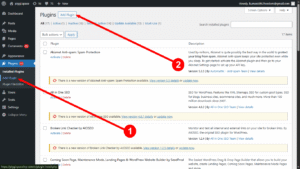
Just go to the left sidebar, hold the plugin section, and click Add Plugin button
 Go to WP Rocket’s Official Website and Download the Plugin zip file into your system
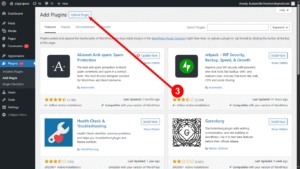
Now click Upload Plugin button to Upload the Plugin zip File
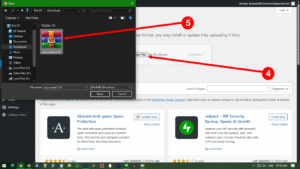
Select the zipped file and upload into WordPress.
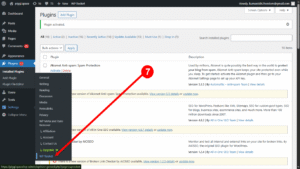
After uploading the file, Go to Setting Menu and click the WP Rocket Option
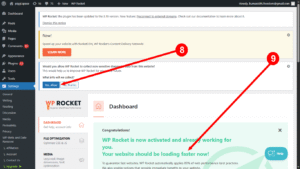
Click the “Yes, Allow” option as shown in no. 8 to approve the access of WP Rocket to your WordPress. You can see WP Rocket is now activated.
A really good blog and me back again.